---
title: Markdown Slide Decks in Obsidian with Marp and Claude Code
description: Build slide decks inside your Obsidian vault with Marp and Claude Code. Markdown in, PDF out, assembled from notes you already wrote.
publishDate: 2026-05-28
canonical: https://www.mandalivia.com/obsidian/marp-obsidian-markdown-slide-decks-with-claude-code/
---

![Illustration for building markdown slide decks in Obsidian with Marp and Claude Code — a pencil-sketched wooden desk with an Obsidian crystal, a flat-panel monitor on a stand showing a slide deck titled "Weekly Status Update", and a small luminous spark in the upper right](../../assets/wonderings/marp-obsidian-markdown-slide-decks-with-claude-code/marp-obsidian-markdown-slide-decks-with-claude-code.webp)

I was working on a client engagement a few months ago, the kind of recurring relationship where I owed a tidy update before every weekly check-in. My project notes lived in Obsidian: the brief, the meeting minutes, the open questions, the decisions log. Standard vault hygiene.

The deck I sent the client did not live in Obsidian. Every Sunday I'd open Google Slides, duplicate last week's deck, and copy lines out of my vault notes into the new one. The slides were downstream of the notes, but the two didn't know about each other. I was the integration layer, by hand, every week.

After a few weeks of this it started to bug me that the source of truth was already sitting in one place and I was the one moving it somewhere else. My vault is where I look for everything: project notes, meeting minutes, past drafts, reference material. I wanted the deck there too, alongside the notes it was built from, so that next time I needed it I'd find it in the same folder I was already in.

This is the story of moving slides into the vault. Marp turned out to be the right tool for it. The more interesting part is the same compounding move as [the hledger setup](/obsidian/hledger-obsidian-personal-finance-with-claude-code/): once the deck lives next to the project notes, Claude can read the notes and assemble the deck for me. The vault is already the control plane. The slides became part of it.

## The deck falls out of the notes

If you maintain a real project file in Obsidian, purpose, outcome, workstreams, open questions, decisions, a dated log of what shipped, you already have the deck. You just don't have it in slide shape.

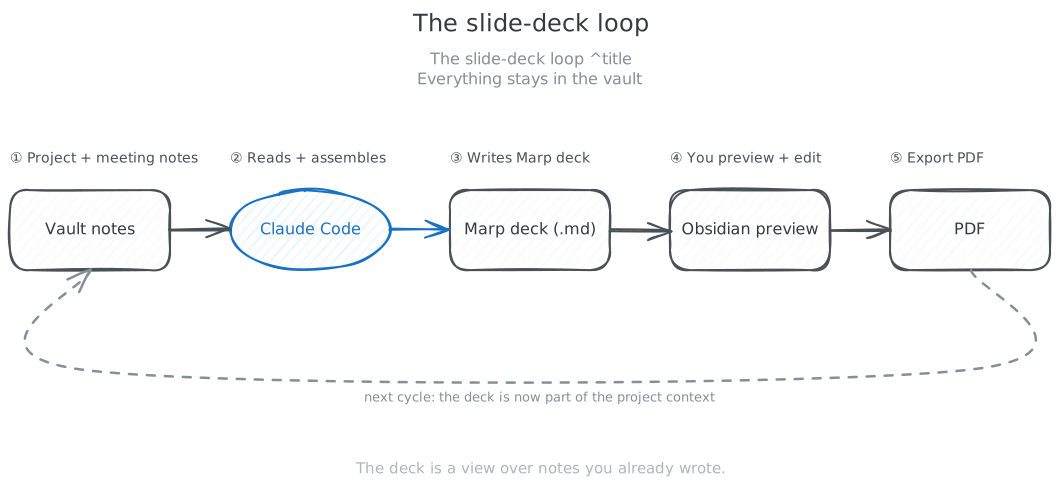
The shift is to stop treating the deck as a separate artifact you author. The deck is a view over the project file, generated on demand, that lives in the same folder as the notes it was built from. When the meeting's over, the deck stays in the vault as the record of what was presented. Next week's deck is built from the current state of the notes, which now include the outcome of last week's conversation. The notes and the deck are in a loop.

Claude is what closes the loop. The deck isn't generated in the "make something up" sense. It's assembled. Every line on every slide ties back to something I already wrote in the vault, for some other purpose, often weeks before I needed the deck. That's where the value actually compounds.

## What I tried before Marp

The obvious starting point was [Slides Extended](https://github.com/ebullient/obsidian-slides-extended), a community plugin built on reveal.js with real Obsidian integration. Fragments, themes, speaker notes. I ported a couple of decks to it.

For a polished one-off presentation, a pitch deck, a conference talk, something with animation and progressive reveal, Slides Extended is probably the right tool. I want to say that up front, because the next thing I'm going to say sounds like a knock and isn't.

The wall I hit was alignment on text-heavy slides. The decks I actually build week in and week out aren't pitch decks. They're status updates with three labeled sections per workstream (Opportunity, First Steps, Deliverable), repeated across four or five slides, and they need to look identical every time. In reveal.js, getting that consistent spatial composition meant per-slide CSS overrides and a fair bit of nudging. The tool wanted to give me a presentation. I wanted it to give me a form.

Marp's model is different. Markdown in, processor out. One frontmatter style block defines the whole deck. The CSS is small, lives in one place, and applies consistently across every slide. For repeated, text-heavy layouts, it's a much better fit.

The honest tradeoff: Marp doesn't give you a live WYSIWYG view of the rendered slides inside Obsidian the way Slides Extended does. To see what a slide actually looks like, I run the processor and open the output. In practice this is fine because the design system is stable, I know what a Card or a Frame looks like without needing to see it, and the build is fast. But if you want the "edit copy, watch the slide redraw in real time" experience, Slides Extended will feel better.

That's the tool-choice story. Slides Extended for pitch-perfection and live preview, Marp for repeatable text-heavy decks. Most of what I build is the second case, so most of what I build is Marp.

A brief detour on a third option I'll mention and dismiss: [Remotion](https://remotion.dev). A slide is a React component, so technically you can build a whole deck in Remotion. I've used it for *one* slide, a hero opener that needed an animated reveal, and embedded the rendered MP4 inside a Marp deck. Whole-deck Remotion is overkill. Slides are mostly a layout problem, not an animation problem.

## The status-deck loop, end to end

Here's what the loop looks like. The example is anonymized, a real client engagement with a few open workstreams where I send a status deck before each recurring meeting.

The starting state in the vault:

- `Planner/Projects/PR-2026-ClientName.md`, the project file with purpose, outcome, workstream summaries, a dated log
- `Planner/Clients/ClientName/meeting-2026-MM-DD.md`, last week's meeting notes
- `Planner/Clients/ClientName/decks/`, the folder where past decks live

The Sunday workflow:

1. Open a Claude Code session scoped to the vault root.
2. *"Read `PR-2026-ClientName.md` and the meeting notes from the last two weeks. Build me a status deck for the upcoming meeting following the `/slides` skill's design system: title slide, one slide per active workstream with Opportunity / First Steps / Deliverable, a 'How we work together' slide, a closing 'what's first' slide. Save it as `Planner/Clients/ClientName/decks/2026-MM-DD-status.md`."*
3. Claude reads the project file, pulls the workstream names from the latest log entries, drafts the deck as Marp markdown, and saves it.
4. I open the file in Obsidian. The Marp preview shows the rendered slides in the side pane. I edit lines of copy directly, because every slide is just markdown.
5. When I'm happy with it, I run `marp-build.sh deck.md pdf`. The PDF lands next to the markdown file.
6. Attach the PDF to the meeting invite, or paste a link in the email.

The whole thing takes about twenty minutes, most of it spent on the slides where I'm deciding what to say. The layout is a solved problem because the design system is fixed.

After the meeting, the markdown stays in `decks/` alongside the project file. Next week, when I run the same prompt, Claude can read the previous deck too if I want continuity: *"this week's deck should reference the asks from last week's deck and note what got answered."* The history accumulates in the vault automatically, because the history is the same files I was already maintaining.

## The design system is the moat

The reason this works is that the `/slides` skill encodes the visual language once. Color palette. Type scale. The card pattern for Opportunity / First Steps / Deliverable. The browser-chrome frame for web screenshots. The whisper-text style for dates and annotations. One frontmatter style block lifted into every new deck, with the same CSS classes available in every file.

If you're picking up this guide for your own use, this is where you'll spend most of your effort: deciding the visual language and writing it down. Once it's written down, every future deck inherits it. The skill *is* the theme.

A few principles I converged on after a few months of doing this, the ones that survived multiple tool changes and will probably outlast Marp itself:

1. **Title as assertion, not label.** *"Three platforms cover ~2,000 counties"*, not *"Provider Landscape"*. The title carries the conclusion; the body carries the evidence.
2. **Two text levels only.** Title plus body. If you need a third level, it's a new slide.
3. **Bold the lead, dim the explanation.** In bulleted body text, lead the bullet with the bolded conclusion, then a dimmer expansion. *"**The data is there.** Public records, published online, in standard formats."* The skimmer gets the point in three words; the reader gets the detail.
4. **Screenshots get their own slide.** Full width, with a one-line caption below. Takeaways go on the next slide, not beside the image.
5. **Warm off-white background** (`#f8f8f6`) over pure white. Subtle, but the whole deck feels less aggressive.

These survive any tool. Document them in the skill, not in any individual deck.

## Diagrams, screenshots, illustrations

The visual side scales as well as the text side when everything stays in the vault. Three patterns I lean on:

**Inline SVG drawn by Claude.** Need a flowchart, a simple architecture diagram, a small decision tree? Tell Claude what you want and ask for the SVG inline in the slide. The SKILL.md has a style spec (rounded rects, off-white fills, slate strokes, system-ui font), so the SVGs come back matching the rest of the deck. No image files, no rendering step. The diagram lives in the markdown.

**Excalidraw, exported as SVG, embedded in the slide.** For anything more hand-drawn or conceptual, the kind of diagram I'd sketch on a whiteboard, I draw it in Obsidian's Excalidraw plugin and export as SVG to the deck's `attachments/` folder. The Excalidraw source stays in the vault, so revising the diagram later is editing the original, not redrawing it.

**Screenshots, framed.** Web screenshots get wrapped in a browser-chrome frame with traffic-light dots, a URL hint, and a soft drop shadow. The CSS for the frame lives in the skill, reusable across decks. The screenshot itself goes in the deck's local `attachments/` folder. The deck folder ends up self-contained: markdown, PDF, screenshots, SVGs, all in one place.

None of these techniques is the point on its own. The point is that the visual layer has the same property as the text layer: assets live next to the slides that use them, the skill encodes the conventions once, and Claude can build any of these on request from material already in the vault.

## What I learned

A few things that aren't obvious going in.

**The wedge isn't markdown slides.** Markdown slide tools are commodity. What isn't commodity is *slides assembled from notes that were already curated for some other purpose.* The project file existed before the deck. The meeting notes existed before the deck. The deck is a view over content I would have written anyway. Tool choice matters less than the surface area Claude gets to read from.

**Tool choice is workload-specific.** Marp won for recurring text-heavy status updates because that's most of what I build. For a one-off pitch deck with progressive reveal and a real animated hero, I'd reach for Slides Extended instead. There's no need for one tool to be the answer for every kind of deck.

**The design system is the durable artifact.** Decks are throwaway. Last week's status update doesn't get referenced again. The design system, color palette, type scale, card patterns, screenshot frames, the rules in the SKILL.md, is what compounds. Every deck inherits it. Spend your effort there, not on individual slides.

**The vault stays the control plane.** This is the part I keep coming back to. The reason this setup feels different from "use AI to make slides" is that nothing leaves the vault. The notes are in the vault. The deck markdown is in the vault. The exported PDF is in the vault. The Excalidraw diagrams are in the vault. The screenshots are in the vault. When I look for the deck I sent a client three months ago, I find it next to the project notes from that quarter.

## Caveats

**Marp is a slide renderer, not a presentation tool.** Speaker notes synced to a presenter view, remote control from your phone, audience polling, a live timer, none of that. Marp builds HTML and PDF. For the actual presenting I use the PDF or open the HTML in a browser. If you need richer presenter tooling, Slides Extended gives you that.

**Fragments don't exist.** No progressive reveal in Marp. If a slide needs to build up element by element, either fake it with multiple near-identical slides or use a different tool. For status decks this almost never matters; for storytelling decks it might.

**Visual ambition is bounded.** You won't out-design a designer working in Figma. The trade is that decks fall out of your notes in twenty minutes, look consistent across projects, and live forever in the vault. For the workload this is solving, that's a good trade. For a board-meeting deck where polish is the whole point, hire a designer.

<img src="/images/garden/obsidian/marp-obsidian-markdown-slide-decks-with-claude-code.svg" alt="marp-obsidian-markdown-slide-decks-with-claude-code.excalidraw" />

---

*The section above is the story of why this system exists and what it does. Below is the spec for how to build it. If you're handing this URL to Claude Code so it can set the system up for you, the information below is what it needs.*

---

## Prerequisites

- An [Obsidian](https://obsidian.md) vault you do project work in
- macOS or Linux with a terminal
- [Node.js](https://nodejs.org) via [fnm](https://github.com/Schniz/fnm) or your version manager of choice
- [Claude Code](https://www.anthropic.com/claude-code) installed and configured

## Step 1: Install Marp CLI

```bash
npm install -g @marp-team/marp-cli
marp --version
```

You should see 3.x or higher.

Marp's [Obsidian preview](https://marp.app) works out of the box once frontmatter declares `marp: true`. No plugin required. The CLI is only used for export.

## Step 2: Pick a home for decks in the vault

Two patterns I've used:

- **Per-project**, `Planner/Clients/<ClientName>/decks/YYYY-MM-DD-status.md` alongside the project file and meeting notes. Best when decks are scoped to one engagement.
- **Per-deck folder**, `Decks/<deck-slug>/deck.md` plus `Decks/<deck-slug>/attachments/`. Best when a deck has many local images and you want it self-contained.

Pick one and put it in the README for the skill so future sessions stay consistent.

## Step 3: Define the design system in the skill

The `/slides` skill is where the visual language lives. The frontmatter style block, the color palette, the card patterns, the screenshot frame CSS, all of it goes here. Every new deck inherits it.

A minimal frontmatter template:

```yaml
---
marp: true
theme: default
paginate: false
size: 16:9
style: |
  section {
    font-size: 24px;
    justify-content: flex-start;
    padding-top: 60px;
    background: #f8f8f6;
  }
  .stat-big {
    font-size: 4em;
    font-weight: bold;
    text-align: center;
  }
  .browser-frame {
    background: #f8fafc; border-radius: 10px;
    box-shadow: 0 8px 30px rgba(0,0,0,0.12);
    overflow: hidden; margin: 0.8em auto 0;
  }
  .browser-bar {
    background: #e2e8f0; padding: 7px 12px;
    display: flex; gap: 6px; align-items: center;
  }
  .browser-dot { width: 9px; height: 9px; border-radius: 50%; }
  .browser-url { font-size: 0.5em; color: #94a3b8; margin-left: 8px; }
  .browser-frame img { width: 100%; display: block; }
---
```

The color palette I use across decks:

| Role | Color |
|---|---|
| Dark text (headings, bold labels) | `#334155` |
| Body text | `#444` |
| Muted (descriptions) | `#666` |
| Whisper (dates, labels) | `#aaa` |
| Card border | `#cbd5e1` |
| Card fill | `#f8fafc` |
| Positive | `#16a34a` |
| Negative | `#dc2626` |
| Warm background | `#f8f8f6` |

Document this in the skill once and refer to it in prompts after.

## Step 4: The build wrapper

Save as `marp-build.sh` somewhere on `$PATH` (or inside the skill folder if you're using Claude Code skills):

```bash
#!/bin/bash
set -euo pipefail
FILE="$1"
FORMAT="${2:-html}"

case "$FORMAT" in
  html) marp --html --allow-local-files "$FILE" -o "${FILE%.md}.html" ;;
  pdf)  marp --html --allow-local-files --pdf "$FILE" -o "${FILE%.md}.pdf" ;;
  both)
    marp --html --allow-local-files "$FILE" -o "${FILE%.md}.html"
    marp --html --allow-local-files --pdf "$FILE" -o "${FILE%.md}.pdf"
    ;;
  *) echo "Usage: $0 <file.md> [html|pdf|both]"; exit 1 ;;
esac
```

`chmod +x marp-build.sh`. Use it like `./marp-build.sh deck.md pdf`.

The `--html` flag is required. Marp silently strips inline `<div>` and style attributes without it, and most of the design system depends on inline divs for layout.

## Step 5: The slide-from-notes prompt pattern

The prompt I use, parameterized:

```
Read <project file> and <meeting notes from the last N weeks>.
Build a status deck for the <date> meeting following the /slides
design system.

Structure:
- Title slide (project name, date, my name + role, client name)
- One slide per active workstream: title is the workstream name;
  body is three labeled sections, Opportunity, First Steps, Deliverable
- "How we work together" slide if cadence has changed
- Closing "what's first" slide with the decision I want from the meeting

Save as <path>/YYYY-MM-DD-status.md. Use the frontmatter style block
from the skill. Don't invent facts. Every workstream's content should
trace back to a note I've already written.
```

The "don't invent facts" line matters. Without it, Claude will sometimes fill gaps with plausible-sounding content. With it, ambiguous workstreams come back marked `[needs your input]` instead of fabricated, which is the behavior I want.

## Step 6: Diagrams and screenshots

**Inline SVG (Claude-drawn).** Ask in the prompt: *"For the architecture slide, draw an inline SVG flowchart matching the skill's style: rounded rects, `#f8fafc` fill, `#cbd5e1` stroke, system-ui font, 13pt."* The SVG lands inline in the markdown. No external files.

**Excalidraw (your hand-drawn diagrams).** Draw the diagram in Obsidian's Excalidraw plugin. Export as SVG (`File → Export Image → SVG`) to the deck's `attachments/` folder. Reference from the slide:

```html
<img src="attachments/system-loop.svg" style="max-width: 80%;">
```

The Excalidraw source `.md` file stays in the vault so you can revise it later. Keep both the source and the SVG export.

**Web screenshots.** Wrap in the browser-chrome frame defined in the style block:

```html
<div class="browser-frame" style="max-width: 95%;">
  <div class="browser-bar">
    <div class="browser-dot" style="background: #fca5a5;"></div>
    <div class="browser-dot" style="background: #fde68a;"></div>
    <div class="browser-dot" style="background: #86efac;"></div>
    <span class="browser-url">example.com/page</span>
  </div>
  <img src="attachments/screenshot.webp">
</div>
```

Then put the takeaways on the next slide, not beside the image.

## Gotchas the agent should know about

These are the failure modes that survive every attempt to make the workflow smooth.

- **`--html` is mandatory.** Marp strips inline divs and style attributes without it. Easy to miss in PDF output where everything looks fine but the layout is gone.
- **Marp's default theme fights vertical centering.** Use `justify-content: flex-start` and `padding-top` on `section` to anchor content to the top, otherwise content floats.
- **No Mermaid.** Marp's SVG rendering has font-size detection bugs with Mermaid. Use inline SVG for diagrams instead.
- **No fragments.** Marp has no progressive reveal. If a slide needs to build up element by element, switch to Slides Extended for that deck.
- **Screenshots inside side-by-side layouts become unreadable.** Always give a screenshot its own slide. Takeaways on the next slide.
- **`<!-- comments -->` at the top of a slide aren't Marp directives.** They're just markdown comments. Marp directives use `<!-- _class: ... -->` syntax.

## When to switch tools

Marp is the right answer for the recurring workload. It's the wrong answer for:

- One-off pitch decks with progressive reveal and animation
- Decks that need real presenter view, remote control, or polling
- Decks where the visual design is the product (a brand pitch, a launch reveal)

For any of those, use [Slides Extended](https://github.com/ebullient/obsidian-slides-extended) (reveal.js, still inside Obsidian) or break out of the vault entirely and use a designer's tool. The point isn't to make Marp do everything. It's to use the right tool for each workload while keeping as much as possible inside the vault.

## Related

- [Personal Finance in Obsidian with hledger and Claude Code](/obsidian/hledger-obsidian-personal-finance-with-claude-code/)
- [Your Obsidian Vault Is Already an Agent Memory System](/obsidian/your-obsidian-vault-is-already-an-agent-memory-system/)
- [Custom OG Images with Remotion](/obsidian/custom-og-images-remotion-obsidian-astro/)
- [Scrollytelling with Excalidraw](/obsidian/scrollytelling-with-excalidraw/)
- [Using Obsidian as a CMS with Astro.js](/obsidian/obsidian-with-astro-for-personal-site/)