Replying to Email Without Leaving the Terminal
Replying to email looks simple until you notice how many tabs you open. Someone writes asking to set up a call. To reply well, you need to remember what you last talked about, check your calendar, find open slots, and write something that sounds like you rather than a template. Each step takes thirty seconds. The sequence takes five minutes and breaks your focus completely.
I built a workflow in Claude Code that collapses this into one conversation. I say “there’s an email from Sarah,” and it fetches the thread, looks up her file in my vault, checks my calendar for open slots, and drafts a reply in my actual writing style. If I like the draft, it saves it directly to Gmail. The whole thing takes about a minute, and I never leave the terminal.
What’s Actually Happening
The workflow chains four tools that don’t know about each other:
- Gmail (
gwsCLI) — fetches the email thread - Obsidian vault — looks up the person’s file for relationship context (what we last discussed, open threads, their role)
- Apple Calendar (
icalCLI) — scans for conflicts and suggests specific open times - Claude — synthesizes all of this and drafts a reply that matches my voice
The key insight is that each tool contributes something the others can’t. Gmail has the conversation. The vault has the relationship history — what I’d normally keep in my head or scramble to recall. The calendar has my actual availability. And Claude turns all of it into a reply I’d be comfortable sending, not a corporate-sounding template I’d need to rewrite.
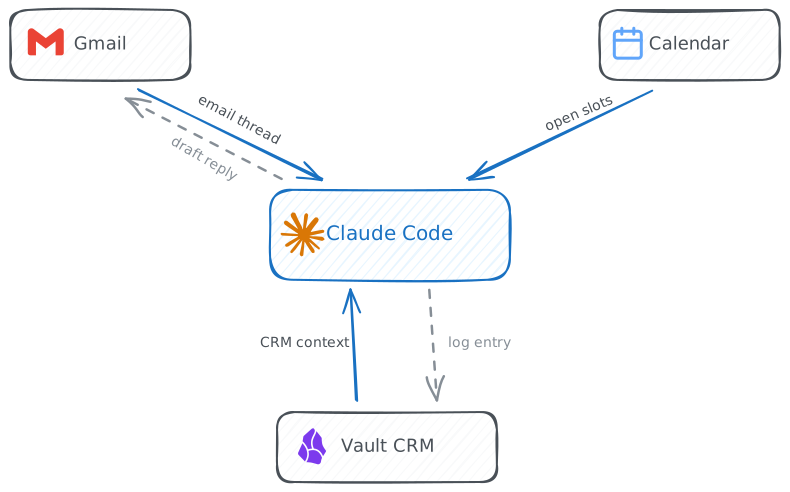
The Loop
Here’s what a typical run looks like. A former colleague emails asking to catch up and discuss a project. I tell Claude to process the email.
Step 1: Find the person. Claude searches my Personal CRM folder in the vault. Each person has a markdown file with frontmatter (company, role, email, how we know each other) and a dated log of past conversations. Claude reads the last couple of entries to understand the context.
If the person doesn’t have a file yet — maybe it’s a cold email or someone I haven’t cataloged — Claude offers to create a stub and optionally pull their LinkedIn profile for background.
Step 2: Fetch the email. Using the Google Workspace CLI, Claude pulls recent threads with this person and reads the relevant message. It shows me the email alongside the CRM context, so I can see both in one view.
Step 3: Draft the reply. I give Claude the rough shape of what I want to say — sometimes a clear sentence, sometimes a rambling voice-dump. Claude has a separate skill file that defines my email voice: sentence structure, sign-off patterns, words I use, words I don’t. The output sounds like something I’d actually send from my phone, not something an AI drafted.
Step 4: Check the calendar. If the reply involves scheduling, Claude scans my calendar for the relevant window, filters out noise (recurring holds, kids’ activities), and suggests two or three specific slots. Instead of “I’m generally free next week,” the draft says “How about Tuesday or Wednesday, 10am Central?”
Step 5: Send or save as draft. Claude creates a properly threaded Gmail draft — meaning it shows up in the right thread in my inbox, not as a disconnected new message. I review it in Gmail and hit send when ready.
Step 6: Update the CRM. A brief dated entry goes into the person’s vault file: what the email was about, that I replied. Two lines. The email itself is the detailed record — the vault entry is just a bookmark so I have context for next time.
Teaching It Your Voice
The email style skill was the part that surprised me most. I fed it five or six real emails I’d sent — different registers, different contexts — and described the patterns: I use ellipses for pauses, parentheticals that wander, quoted single words to mark concepts. I don’t use em-dashes. I don’t say “hope this finds you well.” I end active threads without a sign-off.
The result is that drafts come back sounding like me on a lazy morning rather than a corporate communications department. The first draft is usually close enough that I send it with minor tweaks or no changes at all. When it misses, it’s easy to say “more casual” or “drop the last line” and get a revision.
This matters more than it sounds. If every AI-drafted email reads like AI-drafted email, you’ve saved time but lost your voice. The people you’re writing to can tell. A style skill is maybe an hour of setup and it pays off on every reply.
What I Learned
Context makes replies better, not just faster. Without the CRM lookup, Claude would draft a generic reply. With it, the reply can reference the last conversation, acknowledge an open thread, or skip context the other person already knows. The vault is doing work that would otherwise require me to scroll through old emails and jog my memory.
Specific times beat vague availability. “I’m free most mornings” puts the scheduling burden on the other person and usually triggers another round trip. “How about May 6th or 7th, 10am Central?” is one email instead of three.
Draft mode builds trust. I was nervous about Claude sending email directly. The draft step is a pressure valve — I always see the final version in Gmail before it goes out. After a few weeks of reviewing drafts and finding them fine, I’ll probably move to direct send for routine replies. But starting with drafts let me calibrate without risk.
Technical Setup
The motivation section above describes the workflow. Below is how to actually build it. If you’re handing this URL to Claude Code, the information below is what it needs.
Prerequisites
You need three CLI tools:
gws(Google Workspace CLI) — for Gmail operations. See Gmail to Vault to Calendar for installation, OAuth setup, and skill consolidation. The short version:npm install -g @googleworkspace/cli, thengws auth setup --loginto authenticate.ical— for calendar lookups. Install via Homebrew.- An Obsidian vault with a
Personal CRM/folder containing people files with frontmatter (email,last_contact,cadence,circle,Company).
Multi-Account Gmail
The gws CLI authenticates against a single Google account by default. If you have multiple inboxes (personal Gmail and a work Google Workspace account), you need separate config directories.
# Create a config dir for the second account
mkdir -p ~/.config/gws-work
cp ~/.config/gws/client_secret.json ~/.config/gws-work/
# Authenticate the second account
GOOGLE_WORKSPACE_CLI_CONFIG_DIR=~/.config/gws-work gws auth loginThe second account also needs to be a test user on your GCP OAuth app (since it’s in testing mode): GCP Console → APIs & Services → OAuth consent screen → Test users → Add the email.
If the second account is a Google Workspace account (not a personal @gmail.com), it also needs the Service Usage Consumer role on the GCP project: IAM & Admin → Grant Access → role roles/serviceusage.serviceUsageConsumer.
Once set up, prefix any gws command with the env var to target the second account:
# Query work inbox
GOOGLE_WORKSPACE_CLI_CONFIG_DIR=~/.config/gws-work gws gmail +triage --query 'is:unread'
# Query personal inbox (default, no prefix needed)
gws gmail +triage --query 'is:unread'When searching for a person’s email, check both accounts. When replying or creating drafts, use whichever account the thread lives in.
Creating Threaded Gmail Drafts
Gmail drafts need proper threading headers or they’ll appear as new conversations. The gws CLI has +reply for sending directly, but drafts require the raw API:
# 1. Get the Message-Id header from the original message
gws gmail users messages get \
--params '{"userId":"me","id":"<MSG_ID>","format":"metadata","metadataHeaders":["Message-Id"]}'
# 2. Build the raw RFC 2822 message with threading headers
RAW=$(python3 -c "
import base64, sys
print(base64.urlsafe_b64encode(sys.stdin.read().encode()).decode().rstrip('='))
" <<'EOF'
To: [email protected]
Subject: Re: Original Subject
In-Reply-To: <[email protected]>
References: <[email protected]>
Content-Type: text/plain; charset=UTF-8
Your reply text here.
EOF
)
# 3. Create the draft with the thread ID
gws gmail users drafts create \
--params '{"userId":"me"}' \
--json "{\"message\":{\"raw\":\"$RAW\",\"threadId\":\"<THREAD_ID>\"}}"Both In-Reply-To and References headers must match the original Message-Id (with angle brackets). Without them, Gmail puts the draft in a new thread even if threadId is set.
The Email Style Skill
Create a skill file that teaches Claude your writing voice. The structure:
~/.claude/skills/email-style/SKILL.mdInclude:
- Hard rules (e.g., “never use em-dashes”)
- 3-5 real emails you’ve sent as reference examples, covering different registers (quick reply, warm catch-up, business with an ask)
- Patterns you use (contractions, sign-off conventions, how you handle tangents)
- Patterns to avoid (corporate filler, AI-sounding phrases, over-thanking)
The skill description should trigger whenever Claude is drafting short-form writing — emails, texts, DMs. This ensures it loads automatically when other skills (like the email-process skill) need to compose a reply.
The Email-Process Skill
The orchestrator skill ties everything together. Key sections:
- Dependencies — explicitly loads the
gwsandemail-styleskills - Person lookup — globs
Personal CRM/for the person’s file, reads frontmatter and recent log entries - Email fetch — searches both Gmail accounts, reads the thread
- Reply drafting — applies the email style, includes calendar awareness for scheduling
- CRM update — appends a brief dated entry to the person’s file
- Send or draft — creates a threaded Gmail draft or sends via
+reply
The calendar check uses ical list --from <date> --to <date> to scan for conflicts in the relevant window.